
How to make Knights of the Old Republic work on Windows 7
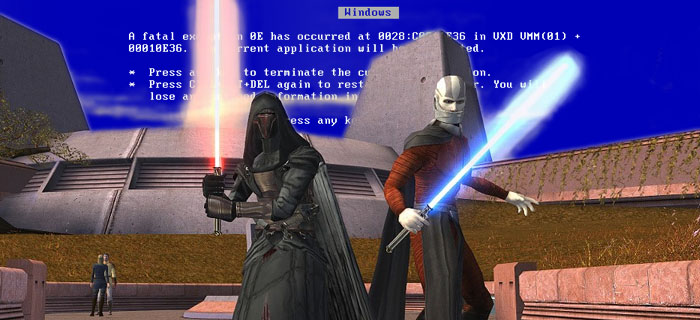
As always, Steam’s annual Christmas sale meant I’d be dumping the best part of two months’ rent on cheap and shiny video games to play. I’ve not played a big RPG for far too long, so it seemed now would be a good time to finally get into Knights of the Old Republic.
It was Bioware’s exceptionally well received Star Wars RPG set in the era when there were a ton of Sith around being dicks and it’s your job to be more or less of a dick depending on your particular mood that day/save file. The only problem with my purchase? KOTOR doesn’t work on Windows 7. Shit.
But complaining won’t do much good. I had to get this fixed!
Two easy fixes for Knights of the Old Republic on modern machines
There are two compatibility strategies that can sometimes get rid of the gremlins that make games crap out. Besides, they also double as “Do these just in case and change them back if you really want to” steps. In a pinch, they can solve the problem of the game not starting up/having errors in XP, and I’ve heard whisperings that they sometimes fix things in Vista.
- First off, if you have the game on Steam, disable the Steam overlay in-game by right clicking KOTOR in your library,* click Properties and it’s the checkbox under the General tab. The normally helpful Steam overlay can sometimes interfere with games from the pre-Steam era (otherwise known as the Golden Age of PC Gaming).
Done that? Tested it? Still not working? Not to worry.
- Open up the folder where you installed the game. If you’re on Steam, it’s in your common folder under your account name in the directory where you installed it. If you’re not on Steam, the folder is wherever you installed the game (check Program Files if you get lost)
- Find the swkotor.exe file – right click it and open up Properties
- Set it to run in compatibility mode for Windows XP SP2
- Also check the box to run as an administrator
- Save the changes, right click swkotor.exe, create a shortcut and throw it down on your desktop
- Double click the shortcut; remember to blink
Compatibility Mode was designed specifically for situations like this, where perfectly good (and old) software is acting bad (and old). This change can therefore solve a lot of the issues with KOTOR not running brilliantly on your modern Windows 7 (and probably Vista or Windows 8) system. This is often all you need to do if you’ve had the game on your current machine before, but it’s not the be all and end all.
There are additional steps you can take to fix KOTOR if you’re still having problems, but do not attempt the following fixes until you’ve already tried those above.
Another possible fix for KOTOR not starting up on Windows 7
So you’ve done the above and still no joy. A lot of people get this far and become dejected/confused, and in their desperation they try cruising for various patches/updates.
DO. NOT. DO. THIS.
KOTOR patches are largely unnecessary and can really screw you over if you’re on Steam (namely: the game won’t open at all, and you’ll be asked for CDs you don’t have). Instead, try the following:
- Go to where you installed Knights of the Old Republic
- You see the swkotor.exe file we messed with earlier? You should also see a file called swconfig.exe in the same folder. Open it up
- Change the resolution to your native resolution or the highest resolution available
- Uncheck V-Sync
- Uncheck ‘Enable Hardware Mouse’
- Check ‘Disable Movies.’ Don’t worry; this only disables the intro logo movies for LucasArts and Bioware, so you won’t miss out on any cutscenes in the actual game
- Save all your changes
- Double click the shortcut you made before
This is the only way I’ve found to get KOTOR to work on Windows 7 and Vista. Don’t get me wrong, I’ve seen other fixes out there, but they seem overly complex and rather daunting to perform.
I’ve been told that these fixes won’t solve every problem with getting KOTOR working on modern versions of Windows as it’s a rather picky game. Apparently, there are certain graphics cards that the game just doesn’t want to cooperate with, so if the above doesn’t make it work for you, Google your graphics card and make sure you’re not one of the unlucky ones.
Still, disregarding odd circumstances, this should make Knights of the Old Republic run quite nicely on modern Windows systems by throwing you instantly to the game’s menu screen to do with what you please. Enjoy!
* If you’ve lost it, don’t worry, just look under Star Wars. See it now? I didn’t and felt very stupid afterwards.



The one question remaining.
Will these work for Kotor 2 too?
(and btw i appear to belucky, my Kotor workes like a charm on win7)
Yes but replace swkotor above with swkotor2 ;)
Believe it or not if you use the kotor 2 from the star wars collections game, it works just fine on the disk.
The star wars collections with the kotors 1 and 2 the 2nd disk runs perfect for 7.
Would love if you could do one of these for Deus Ex GOTY. I’ve never gotten that one working…
Not had trouble with that myself. Have you tried running it as an admin and in compatibility mode?
Yes. Tried all the easy stuff. I can get it to start if I disable all sound in compatability mode, but that’s not a particularly fun way to play. Admin w/ any of the past builds (Vista, XP, etc.) doesn’t seem to help.
I’m trying to get the collection to work on Windows 7, but I can’t find swconfig.exe in the folder. I even searched for it through the start menu and nothing came up. Any suggestions/advice?
I know it sounds really basic but have you made sure that you’re looking in the right folder? If you don’t have it on Steam, the folders will be wherever you chose to install it. If there’s a shortcut for the game on your desktop, right click and look in properties and you’ll find the install path and the folder where swconfig.exe should be.
Its a config.ini file you will need to open and modify after you’ve booted the game, make sure you change the properties so that your user can edit the file using text doc. Hope this helps.
I’m a little surprised that there isn’t a config.exe in the folder but you should be able to achieve the same effect with the .ini
This really worked thanks but I still have a problem… The screen is not fullscreen it’s in half and it annoys me. Well at first I thought I could just set on fullscreen but there is no option help anyone?
Try changing the resolution in the config file and, if that fails, try pressing CTRL+ENTER to make it full screen.
I’ve tried everything you suggested, but I’m also running the Collection on Windows 7, have no swconfig, and cannot change the .ini file. What can I do?
Same problem here, I can’t change any .ini file. I am stuck!
Would like to get into contact with either of you to if you have fixed this problem. I have fixed Kotor I by using the Config. But having the same problem you guys are having with Kotor II no config. no .ini Files.
after i change the settings, the game says i need to insert the DVD, but its already in the computer
Are you using a disc version or do you have it on Steam and it’s telling you to insert a disc?
when i disable the movies i can’t see any of the cutscenes, but if i don’t disable it the game doesn’t run, is this normal?
Howdy, Binerexis! Thanks for your guide and getting back to people with comments and staying on top of everything.
My problem here is that when I run the .exe shortcut (or even the non shortcut) the program opens (I can see it in taskmanager, for instance) and then immediately closes. No screen change or load time. Any pointers?
I’ve been fiddling!
Also in compatibility options there are a bunch of check boxes. (256 colors, 624 resolution, disable display themes, etc.)
I decided to check all of them to see if anything happened, and I got a black loading screen and some glitchy shots of my taskbar. I call it progress.
Running it in 256 colors got me the farthest, which is to say, a black screen. Checking 624 resolution got me the taskbar glitch, but then a popup stating the resolution is to low, then the thing crashes again.
Sorry for the late reply to this. Have you fiddled it into working? Have you tried toying with the config file? Changed the names of the intro cinematics so they don’t play on start up?
Hi. It’s a processor error. Create the following shortcut and just change the paths to where your game is installed. This sets the game to use only ONE CORE of the cpu. You don’t have to disable the movies or use compatibility either. This worked 100% for me.
C:\Windows\System32\cmd.exe /C start “SWKOTOR” /D “D:\Games\LucasArts\SWKotOR” /high /affinity 1 “D:\Games\LucasArts\SWKotOR\swkotor.exe”
Can you please explain the renaming movies thing?
What do I change the movies numbers too?
Currently it lists the numbers as
Movie 10=0
Movie 9=0
Etc. All the way down to one.
Movie 0=96
What should I change? Any support would be great thanks.
It plays but I see no cutscenes.
Change the names of the movie files I mentioned and NOTHING ELSE. The point of doing it is so the game completely skips the intro which can cause problems.
I can’t play, i do all these things, but nothing… my kotor is dvd and my windows is vista.
Got my help from this link.
http://www.lucasforums.com/showthread.php?t=194296
Cheers
C:\Windows\System32\cmd.exe /C start “SWKOTOR /C “C:\Users\Public\SWKotOR” /high /affinity 1 “C:\Users\Public\SWKotOR\swkotor.exe”
that’s what I have punched into the shortcut. The location is right, but when I use the cmd shortcut, it goes into cmd.exe and says C:\Users\MYNAME\Desktop
I followed the instructions and now it’s telling me I have NO saved games at all! Help please?! I have lost hours upon hours of game play.
So it was working on your computer, then you did the fix and now it doesn’t work?
Windows 7: Ultimate SP1 – 32 bit
Toshbia Satellite A135
Intel Celeron M CPU 430 @ 1.73GHz
2gb Ram
ATI RADEON XPRESS 200M Series
–Driver: 8.31.100.32
–Direct X 9.0 or better
——
I have the 4 disc set of both KOTOR 1 & 2 and did the above to no avail. My comp just loads to a low res black screen and after 2 seconds displays “program not responding checking for solutions.” Then “Cannot find solutions blah blah blah” click close program. I am trying to attempt “http://www.lucasforums.com/showthread.php?t=194296” but I perfer pictures haha and I’m getting confused. Is there a simpler way to fix this? or a REAL (preferably clearly stated not going back and forth in reference) Step by Step fix?
Thanks
The first post there looks like a fix that could solve the problem. Where exactly are you getting confused?
The first post was more directed towards KOTOR 2 so I wasn’t sure if the the msdll file would work for KOTOR 1 since I’m trying to get that one to work first.
So I moved on to the second post with more information and I got confused fo
Steps 7 through 9
And Edits (at the bottom of the 2nd post) #2, 3 and 4.
The first post is for both KOTOR 1&2, it was just using KOTOR 2 as the example.
Step 7 in the second post refers back to the first post. Steps 8 is a further fix for the first KOTOR if it doesn’t open and step 9 is a fix for getting rid of lag in a certain area of the game.
The edits at the end of the second post can be ignored as they are mentioned further up in the post.
Ahh Okay now it makes sense. Thanks. I was able to get KOTOR 1 one to work and now I’m attempting at KOTOR 2 today.
it works like a charm when i disable movies but when i do disable movies the movies wont show at all any help please?
Movies not showing when you disable movies is kind of the point ;P
Ok, go to your KOTOR folder and find where the cutscene movies are. If I remember correctly, they’re all named with numbers. What you want to do is identify the movies used when you first load up the game (logos etc). Change the file names so that they become OLD. This means that when you load up the game, it looks for the intro cinematics (the ones which often cause people to crash when opening the game). It does find those files (because you renamed them) so it throws you straight to the main menu. This should allow you to play the rest of the game fine.
DON’T FORGET TO RE-ENABLE MOVIES AFTER CHANGING FILE NAMES.
Thanks alot works great, im kinda useless with computers
Hi, thanks for the advice in text.
Unfortunately, I did as you said but instead throwing me to the main menu it crashes instantly.
I love you. Made it so easy.
Always happy to help!! <3
Can you please explain the movie thing?
It starts at Movie 10=0
Going all the way down to Movie 1
Then it says Movie 0=96
What do I change? Sorry.
Thanks for any help.
Can you please explain the movies thing?
Currently it lists each one like
Movie 10=0
Movie 9=0
All the way down to one
And then
Movie 0=96
What do I change?
It runs okay but no cutscenes play.
Any help would be appreciated.
Did you disable cutscenes in the config file?
Yes I did.
I’m happy, that I can run the game that way but it doesn’t feel complete without cutscenes.
Disabling the cutscenes in the config is why you’re not getting any cutscenes!
Change the names of the files for the opening cutscenes (the ones before the main menu) by putting ‘old’ in the file name. Re-enable cutscenes in the config and then it should all work fine!
If the movies are labeled from 0 to 10
Which ones are the opening cutscenes?
I think the opening cutscenes are 0 and 1. I’ll double check and try to get back to you.
Thanks.
just installed the game from steam. My issue seems to be the game not starting up at all. I’ve tried all your suggestions, but no matter what I do nothing happens; I try to open the game and all I get is my loading icon for a few moments, then nothing.
As the maker of this helpful guide says, you must be one of the unlucky ones, just like me. Your graphics card probably isn’t compatible for the game, so it will never run on your current PC hardware… I am in the same position myself, and i cried a little when i found out… Just google your graphics card model to make sure, but it is probably that :P
Try changing the names of the intro movies and go through the config to disable hardware acceleration. It’s unlikely that you’re on completely incompatible hardware but it may take some tinkering.
I followed your steps, and it all worked fine until I had to leave Dantooine for the first time, and now it crashes whenever I try and leave. Any ideas?
I can’t find the steam checkbox under the general settings tab when i click on properties. Where can I configure the steam on/off?
It was working just fine for me until I arrived on Dantooine and then it keeps freezing up and crashing. I’m not sure if this is the usual problem encountered by all of you, but any help would be amazing!
And in addition, my problem is partially crashes, but more often then not, it freezes and has glitchy lines all over the place and doesn’t let me move anywhere at my save point. Is there any way to fix this? It may be a video card thing, but I’m not sure. I’m running a Windows 7 Sony Vaio fyi.
Had the same problem ages ago, try disabeling sound until you finish that level. If that doesnt solve the problem maybe the patch will http://www.gamershell.com/download_4492.shtml
Hey, tried all this, but my swtor doesn’t open at all and swtor 2 crashes after the whole ebon hawk asteroid into scene, is this the intro scene your talking about
It can be ANY intro scene. Have you tried disabling/renaming them at all?
I just wanted to thank you for this info. I got KOTOR a while back and could never get it to work reliably so I had to give up on it. Recently I updated my drivers to deal with some other issues so I gave the game another try but it still wasn’t working. Your fixes worked excellently and took less than 5 minutes. I’ve spent hours trying to figure out how to make this game work, so you can probably imagine how awesome that was for me. Thanks so much for making it easy!
Glad to help!
Youre the shit dude. Freaking love this game, so excited to play it. This helped a ton.
Get it played and enjoy it!
Thank you so much
This article is BS when you disable movies you disable ALL CUTSCENES!
This has been mentioned higher up in the comments along with the alternative solution.
The game crashes for me after loading unless I disable sound. Any fix for that?
Are you running compatability mode?
Hey, so I changed the names of the movies (biologo, lelogo, legal), but the game still crashes when I load it up unless I disable all movies. I know those are the correct files because when I use the original filenames the movies play. Any ideas?
Thanks a ton! You’re a genius. I’ve been trying for 2 days to get this game working and after going through a bunch of stupid and convoluted ‘solutions’ your simple tips were the only thing that worked. Thanks again. Do you have a similar post for kotor 2?
Anyone who still can’t run the game after everything even window mode shoud download patch http://www.gamershell.com/download_4492.shtml it helped me play this masterpiece once again.
I’m sorry, but disabling movies gets rid of EVERY pre-rendered cutscene. The game starts, but no intro, no cutscenes, no nothing. Some major, MAJOR story points are included in those, and like this it’s almost pointless to play.
Then do what I’ve told others in the comments to do: re-name the intro cinematics if they’re causing issues and the other movies should play just fine.
Also, you’re forgiven.
Everything works but for some reason I cant read the options in the main menu so I have to guess when I click which I dont mind but also, I cant read the dialog options with my character In-game. WTF
That sounds odd. Have you tried messing around with graphics settings?
I have been able to play it on windows 7 before but now it crashes every time I try to open it. It have it from a game collected which according to the internet shouldn’t be having this problem.
I have been able to play it on windows 7 before but now it crashes every time I try to open it. It have it from a game collection which according to the internet shouldn’t be having this problem.
This method does work but be careful! you MUST run the config too as admin, or the game will just ignore it (thx microsoft we all love you). Thx for the help, add this if needed.
I’m truly enjoying the design and layout of your
site. It’s a very easy on the eyes which makes it much more pleasant for me
to come here and visit more often. Did you hire out a designer to create your theme?
Fantastic work!
great put up, very informative. I wonder why the opposite expertts of this sector do not notice this.
You must continue your writing. I’m confident, you hwve a great readers’
base already!
Worked like a charm, thank you so much. What is weird is when I first installed it and opened it up it worked fine but the second time I tried to open it it got stuck in not responding land. I did the steps you put up here and I am back on Telos, and with sharper graphics lol thanks again!! :)
Lol Taris I was playing 2 earlier today and was on Telos lol and I am old and have CRS, thanks again. :)
is there a fix for windows 8??? i’m desperate. tried windows mode and tried cheat mode and didn’t work
i get to the katarn cutscene an after the dialog it crashes everytime.
I think this is among the moszt important info for me. And i aam glad reading
your article. Buut should remark on some general things, The website style is wonderful,
tthe articles is really excellent : D. Good job, cheers
This will get you traffic to your site and make money.
In addition, many of the words used started to
take on slightly different meanings, depending on the context in which they are used.
The Unit is powered by the Main chip adopting the CORTEX A8 core
Sam – Sung S5PV210,and CPU frequency up to 1GHz, Memory 512MB, internal 2G
memory space for TV and Internet integration.
THANK YOU! I was going crazy because i coulnt run Kotor 2 on my Windows8. THANK YOU SO MUCH FOR YOUR HELP. Seriously i reaaally appreciate it =)
Turns out the game actually crashes right after character creation! Any ideas?? Please ?
Sounds like a cutscene issue. What have you done to get the game working?
“KOTOR patches are largely unnecessary and can really screw you over if you’re on Steam (namely: the game won’t open at all, and you’ll be asked for CDs you don’t have).”
OK, I screwed up. I did the patched. Someone in the comment above told me to do it hahaha….Now my Steam sourced Kotor requested for cd…. How can I fix this?
YOU DONE GOOFED!
Uninstall it completely and delete the folder that it’ll (probably) leave behind and start again. If you have any save games, be sure to back them up!
None of these worked for me. Last time i played it(over a year ago), everything was fine(still using the exact same hardware so I dunno) but it won’t run at all, even with these fixes
I’ve tried everything you said on here, and nothing changes with my game >.< I get in, click 'new game', go through the ENTIRE Character creator, and then it crashes after trying to load up the game. any advise?
Have you tried renaming the first couple of cutscenes?
THANKS A BUNCH!! Love you man.
I did all the steps and still not working.
I run it in compatibility mode for Windows XP SP3 (not SP2) and it worked!! :)
Turn Frame Buffer OFF and try again
when ever i play kotor 2 it immediately stops saying unfortunately kotor2 has stopped and say something this about a problem
what do i do???? i did all that u requested we do
Running it in compatibility mode? Messed around with the cutscene files?
That’s sadly all I can think of; KOTOR 2 is a real bitch to get working.
Still can’t get mine working. It’s ridiculous steam can’t somehow make it compatible with Windows 7. So disappointed, was so looking forward to playing this.
What is it you’ve tried so far?
Awesome walkthrough you’ve made here
Unfortunately I couldn’t get my KOTOR 2 to work though
I originally had windows 7 and the game on disc and it ran fine
Then I upgraded to windows 10 and its all downhill from there
Never makes it past the Obsidian title screen
and I tried all of the compatability modes, on both Steam and the Disney Updated version
Nothing
I have an Intel Graphics card, which is a common trait of many running into this issue
I wish LucasArts would take care of it, or whoever owns it now
So I played with my .ini file on both the Steam and Disc versions, and when I reduced fullscreen to 0, and added [Graphics Options]:AllowWindowedMode=1 following, my game opened and would continue to play; this will open the game as a stacked window rather than minimized or maximized/fullscreen. As long as I keep the game in this format, it will play any cutscene, or you can click through any cutscene, which was the big shutdown for me before. After you pass a cutscene, you can then right click the top of the window, and maximize, and it will bring you full screen. After that, you just have to right click on your mouse to bring the cursor back into the game.
Hopefully all of this information will eventually offer an insight into what exactly the problem is for everyone.
– TURN FRAME BUFFER OFF !!!!!!!!!!!!!!!!!!!!!!!!! And GO! (Windows 7)
It Works For Me (now).
May the force be with you, Master, Finally I can play it :’D
The part about disabling movies is completely, 100% WRONG. There are tons of cutscenes in the game that are actual movies that will be missed with that checked. People get confused because “cutscenes” still play, that is, parts of the game where you are watching without any control over what is happening. These, however, are not MOVIES. Movies are things like the dream sequences. You WILL NOT see these scenes with this box checked. Which sucks. Royally. Especially for those of us who never saw them.
Disabling them can help with making the game actually work. To say that it’s a “wrong” solution because there are still portions of the game which take control away from the player is picking on semantics.
All of the movies that you disable can still be found in the folder and can be watched whenever you like so you don’t miss out. There used to be a playlist on YouTube which had all of the movies and told you when to watch them in relation to the story. It sucks if you’ve never seen them before but not seeing a few movies (most, if not all of which, have their events summarised in conversations immediately after they happen) isn’t as bad as not getting the game to run AT ALL.
I appreciate you posting this in such a concise and useful format. I had to go all the way through to the config step to disable vsync and a couple other changes there (I had already toyed with it a bit and confirmed that sound was the problem). I did the config changes one at a time and confirmed that it was the disabling of the movies that did it. Something about that sound setup must be using some legacy crap that wigs out modern hardware/drivers.
When I try to open the shortcut that I created on the desktop, I get a steam error
“Application load error 5:0000065434”
I also have KotOR on an external hard drive. Could that be the issue?
Nvm, I didn’t have to use the shortcut to run the game. I just launched it from Steam and it worked lol. THANK YOU!!!
No worries, brosef!
You need to start your article off with a disclaimer that THIS IS FOR THE STEAM VERSIONS ONLY. The patches you advise people to avoid are necessary for the original CD versions (Which is what they were made for) – that’s why your fixes weren’t working for Mickey (didn’t you see him say he was using the CD versions?).
Although frankly, the real fix for this is “Throw bricks at Valve until they stop making minor tweaks to TF2 and come fix some more serious problems that exist because they half-assed things”. This mess is especially egregious in the case of KOTOR 1 because the Best of PC release of that game was already updated to be compatible with Vista and 7 so the morons should have just used that version instead of half-assedly porting the 2003 version.
Why would I need to put in a disclaimer when the first paragraph of the article is me talking about how I tried to get it to work after I bought it on Steam? I even mention the patches and the fact that they will ask you for the CD is the same paragraph.
cheers its working like a charm! its one of the best games ever
Doesn’t work at all still just freezes after i make my character
Well I have old CD disks. But KOTOR is weird for me. Occasionally runs fine but after awhile it won’t run at all till I reboot my laptop and then it works. I don’t know what happens, I think it may be a system conflict of some sort or some sort of conflict. I get the loadup screen and I punch it and I get the Ebon Hawk and nothing. I’ve tried all sorts of things to correct it. Frustrating. eventually, I give up and reboot my laptop and then it works. I am pretty sure this isn’t suppose to be normal.